

Kami Hair Tools
Advanced XGen Grooming Plugin (Maya 2022+ and above)
Introduction
Kami Hair Tools is a specialized plugin suite designed to make sculpting and creating XGen hair effortlessly.
This plugin will streamline your workflow by consolidating XGen tools into a compact tray of shortcuts and hotkeys. It allows the grooming process to become intuitive, eliminating the friction of clicking through disconnected buttons in the default XGen UI so you can focus on the creative process.
Key Features:
- XGen shortcuts: Toggle all XGen guides and interpolated hair.
- Sculpting shortcuts: Create, sculpt, normalize, rebuild, cut, lock length, and copy shape.
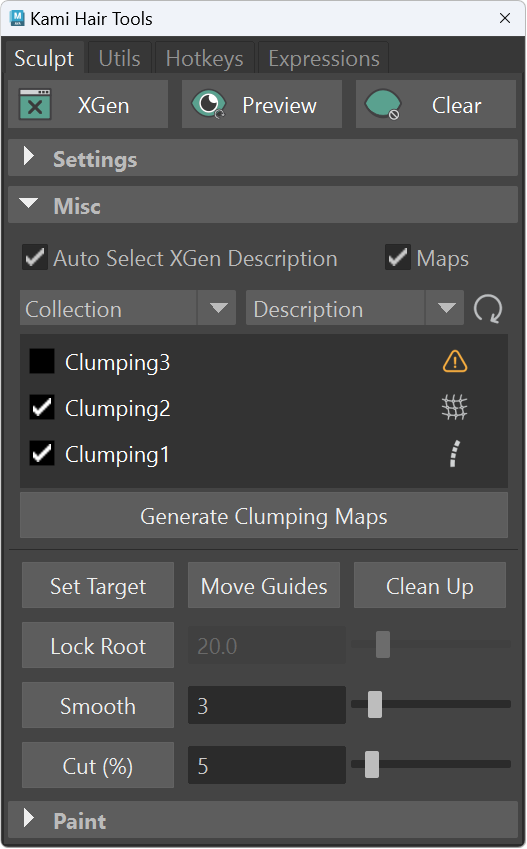
- Guide shortcuts: Auto-select descriptions, generate clumping maps, and check overlapping guides.
- Painting shortcuts: Change brush profiles, toggle mirror painting, and color flood with a double-click.
- Curve extractions: Extract curves from edges, cards, or tubes using various methods.
- Curve shortcuts: Toggle CVs, select roots, reverse curves, and convert to guides.
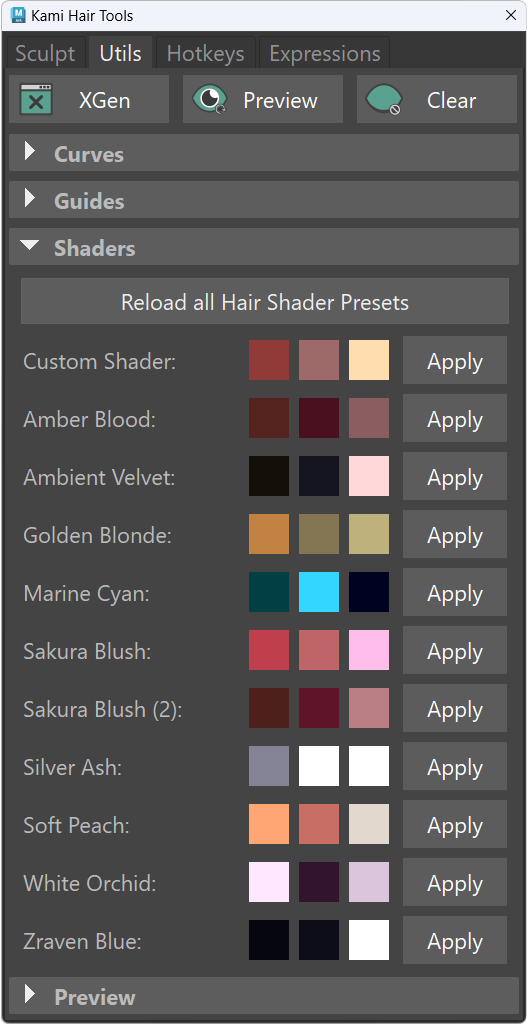
- Shader presets: Apply curated color presets to current or all descriptions with a single click.
- Custom presets: Save and load your own custom shader presets locally.
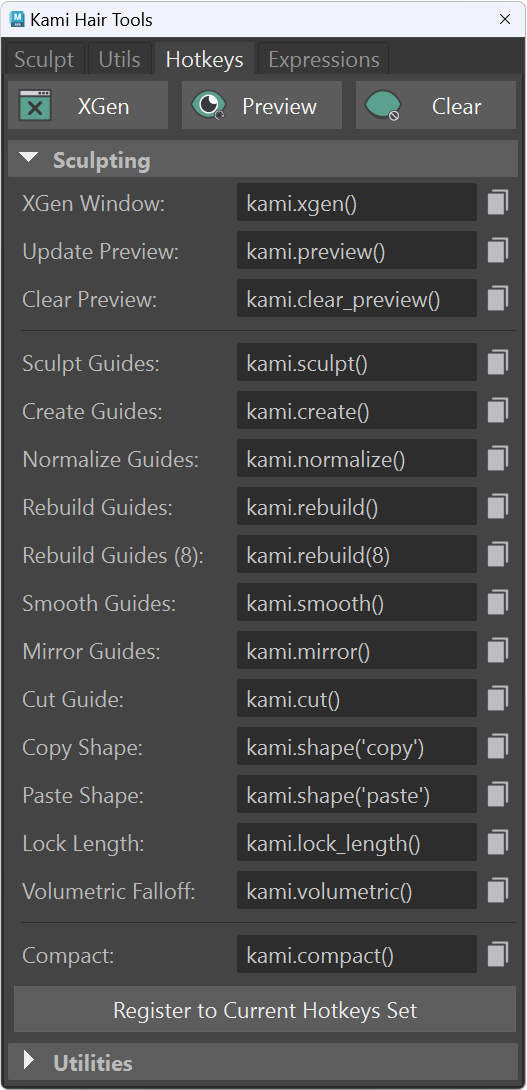
- Extended hotkeys: A clean interface for Python commands, including an auto-register button to configure your hotkeys.
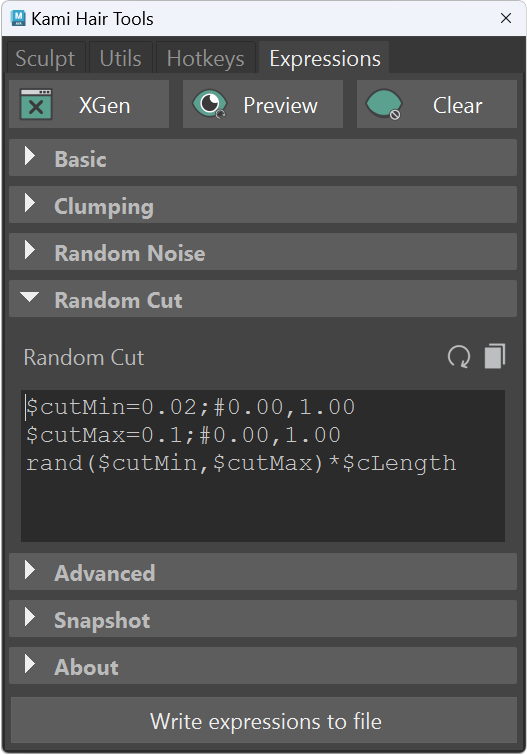
- SeExpr expressions: Fully customizable expressions for clump, noise, and cut to maintain your flow without leaving Maya.
And more!
Overview
Compact interface with 4 tabs layout.
Installation
1. Download & Extract
Download the latest kami.zip from your Gumroad account and extract the contents.
2. Install the Plugin
Open the folder matching your Maya version (e.g., 2024). Copy the inner kami folder into your Maya scripts directory:
- Windows:
Documents\maya\[version]\scripts\ - Mac/Linux:
~/maya/[version]/scripts/
Note: Replace
[version]with your specific Maya version (e.g., 2024).
3. Launch in Maya
Open the Script Editor inside Maya, select the Python tab, paste and run the following commands:
import kami
kami.display()
(4. Optional): Save as shelf button
To avoid typing the code every time, you can save it as a clickable button on your Maya shelf.
Automatic method:
To create a shelf button automatically, run the following script in the Script Editor:
import kami; kami.create_shelf_button()
Manual method:
- Highlight the Python code you just pasted in the Script Editor.
- Middle-mouse-drag the highlighted text onto your desired Shelf tab.
- A dialog will appear asking for the script type; choose Python.
- (Recommended) Right-click the new button and select Edit.
- Icon Label: Type
Kami. - Icon: Click the folder icon to load the
icons/kami.png(included in the zip folder). - Click Save All Shelves.
- Icon Label: Type
Support
Should you need assistance or encounter any issues, please reach out through the channels below:
Discord Community:
Best for quick questions, feature requests, and sharing your work with other users.
Email Support:
Best for private inquiries, licensing questions, or detailed technical reports.